Set a clinician's working hours
State the hours each clinician works every week, and the dates that differ, so the diary shows where there is room.
- Where
- Practice portal
- Who can do this
- Administrator
Working hours say when each clinician works, week by week. The diary draws them behind the clinician's column, and a booking outside them is asked about first.
Before you start
Anybody can read working hours. Changing them needs an administrator.
Steps
To add weekly hours:
- Choose Appointments on the left, then Working hours.
- Under Clinician, choose whose hours to change.
- Under Add weekly hours, choose the Day of the week and fill in Opens · 24-hour, HH:MM and Closes · 24-hour, HH:MM.
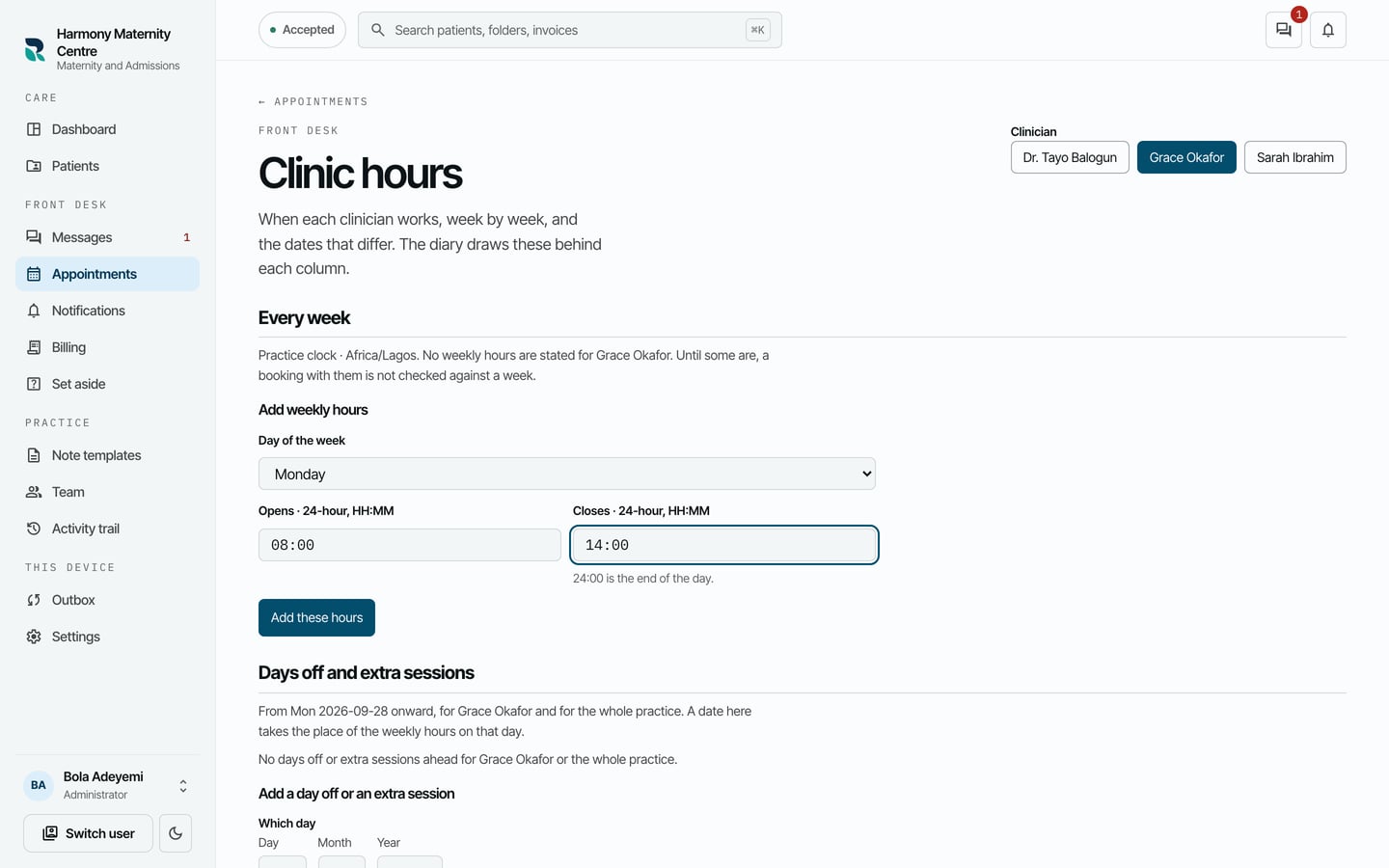
- Choose Add these hours.
To add a day off or a shorter day:
- Under Clinician, choose the clinician.
- Under Add a day off or an extra session, fill in the date.
- For part of a day, choose Part of the day and fill in From and Until.
- Type the Reason.
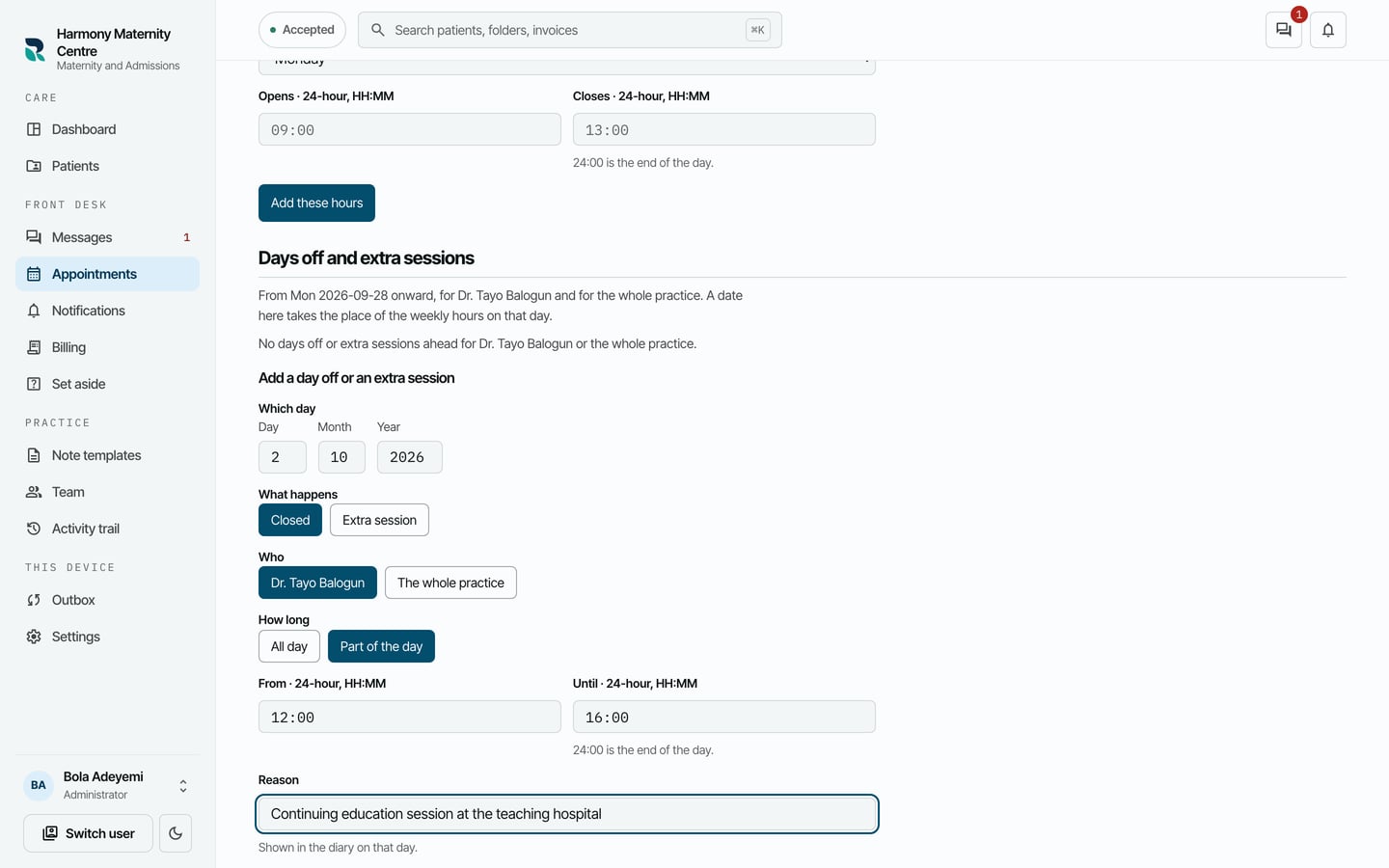
- Choose Add this date.
What to expect
Every week lists each day with its hours and a Retire button, and the days off are listed under Days off and extra sessions. Hours repeat every week until they are retired.
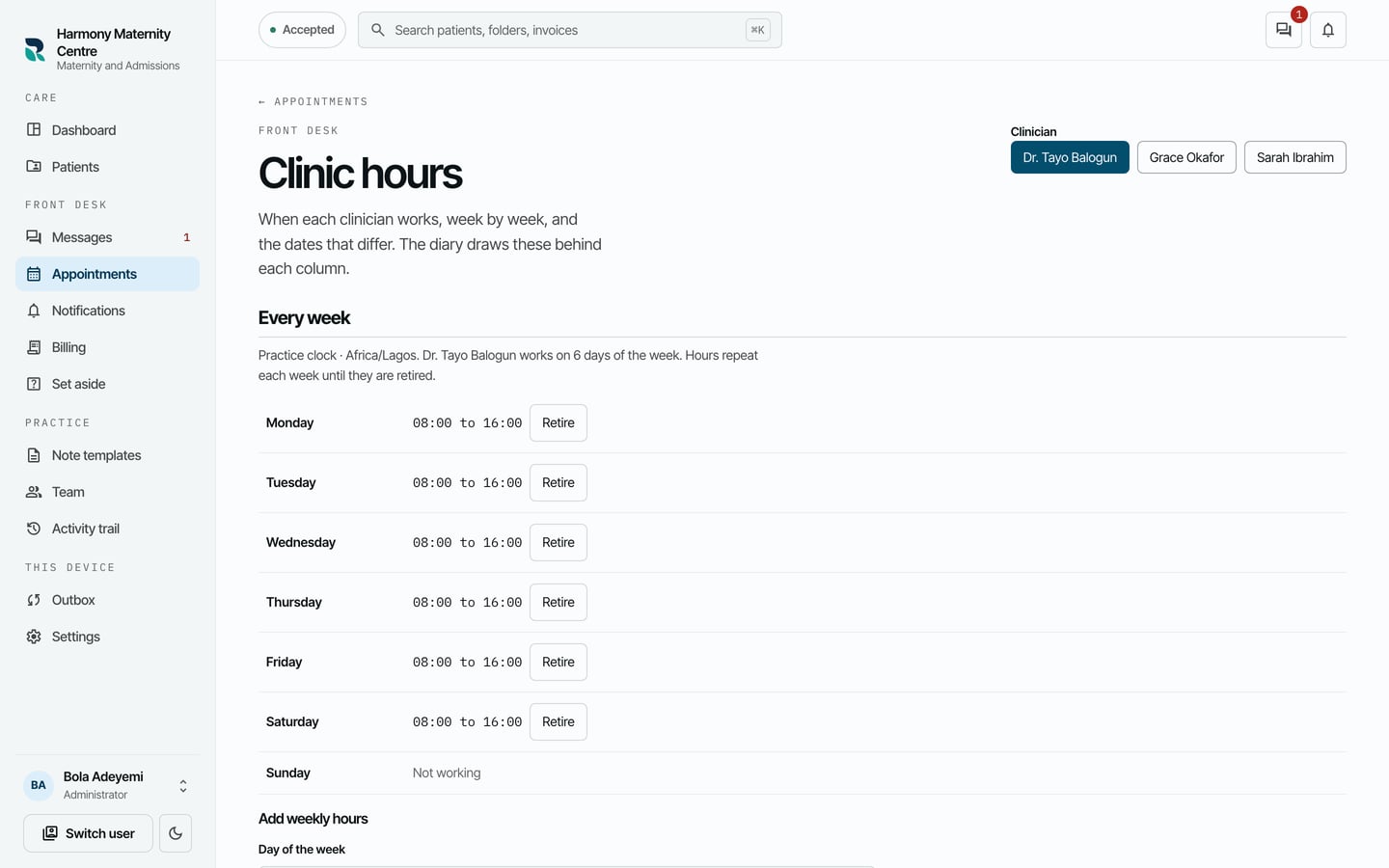
The diary shows the new hours behind the clinician's column straight away.