

Join a video visit on the web
Check your camera and microphone and join your clinician from the patient portal.
- Where
- Patient portal
- Who can do this
- Patients and the family members linked to them
Steps
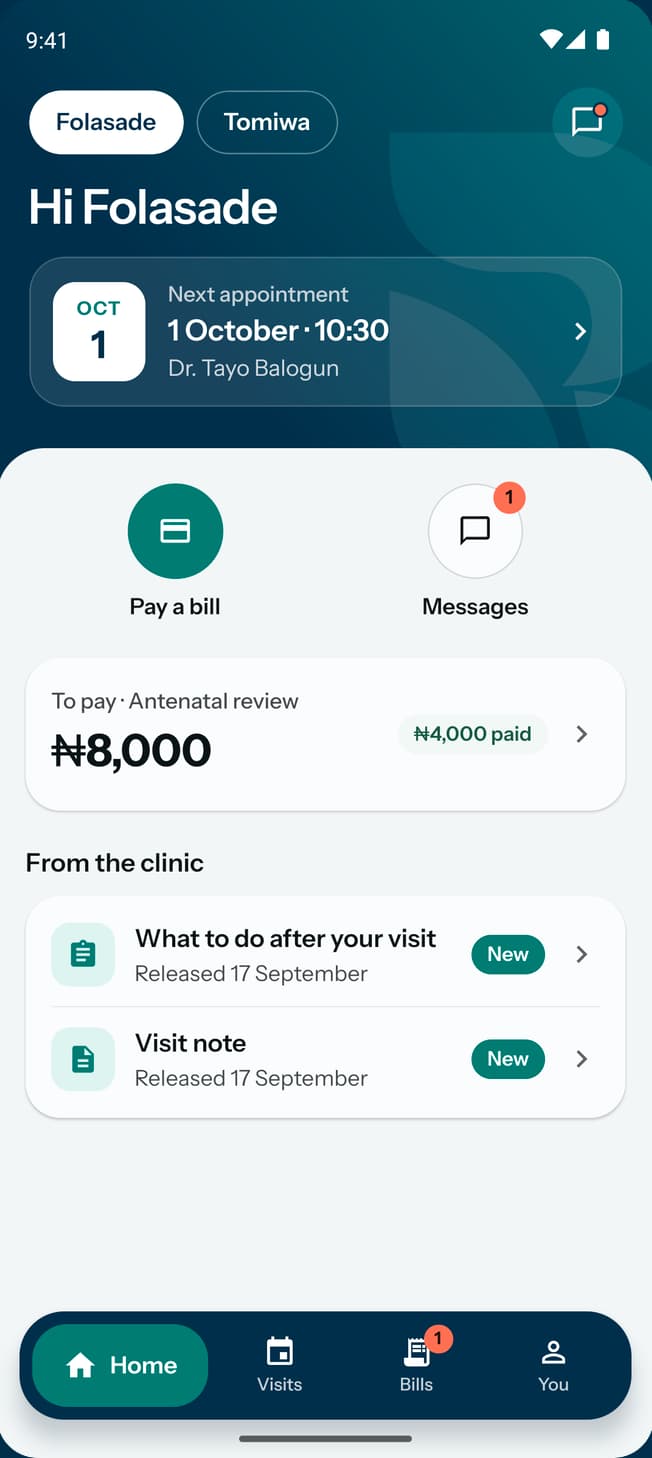
- Open Visits, or find your next appointment on Home.
- Choose Join video visit. The button appears thirty minutes before the appointment and stays until its end.
- Choose Check camera and Check microphone, and allow access when your browser asks.
- Choose Join with video, or Join with audio only if you prefer to keep your camera off.
- Stay on the waiting screen. Your call opens when your clinician lets you in.
If your camera or microphone is blocked
Open the site's permissions in your browser settings. Allow the camera and microphone, then choose Check camera or Check microphone again. If the browser asks you to reload, reload and join from Visits again.
If no device is found, connect a camera or microphone and check again. You can join with audio only when your microphone works, even if your camera is blocked or missing.
What to expect
Choose Mute to stop your microphone, or Turn camera off to stop your video. Choose Switch to audio only if the connection is struggling. The camera may also turn off to help a poor connection.
If you see a reconnecting message, wait for the call to reconnect. If the call disconnects, return to Visits and join again. If you are already joining on another device, leave there before joining here.
Choose Leave call when you want to leave. When your clinician ends the call, choose Back to visits.